

WP Rocket's development environment guide names a specific failure mode that most agency teams gloss over until it costs them a client: configuration drift. The guide defines it plainly as "small differences between staging and live" that compound over time and eventually cause issues that don't surface until code hits production. For white-label teams managing ten, twenty, or fifty client sites, those small differences aren't edge cases. They're the reason your Slack channel fills up with "works on staging, broken on live" messages every other Thursday.
This article breaks down where and why staging environments diverge from production in WordPress agency workflows, what the available data tells us about the most common culprits, and how to structure your WordPress production debugging process so your team stops chasing phantoms.
The Drift Problem, Quantified
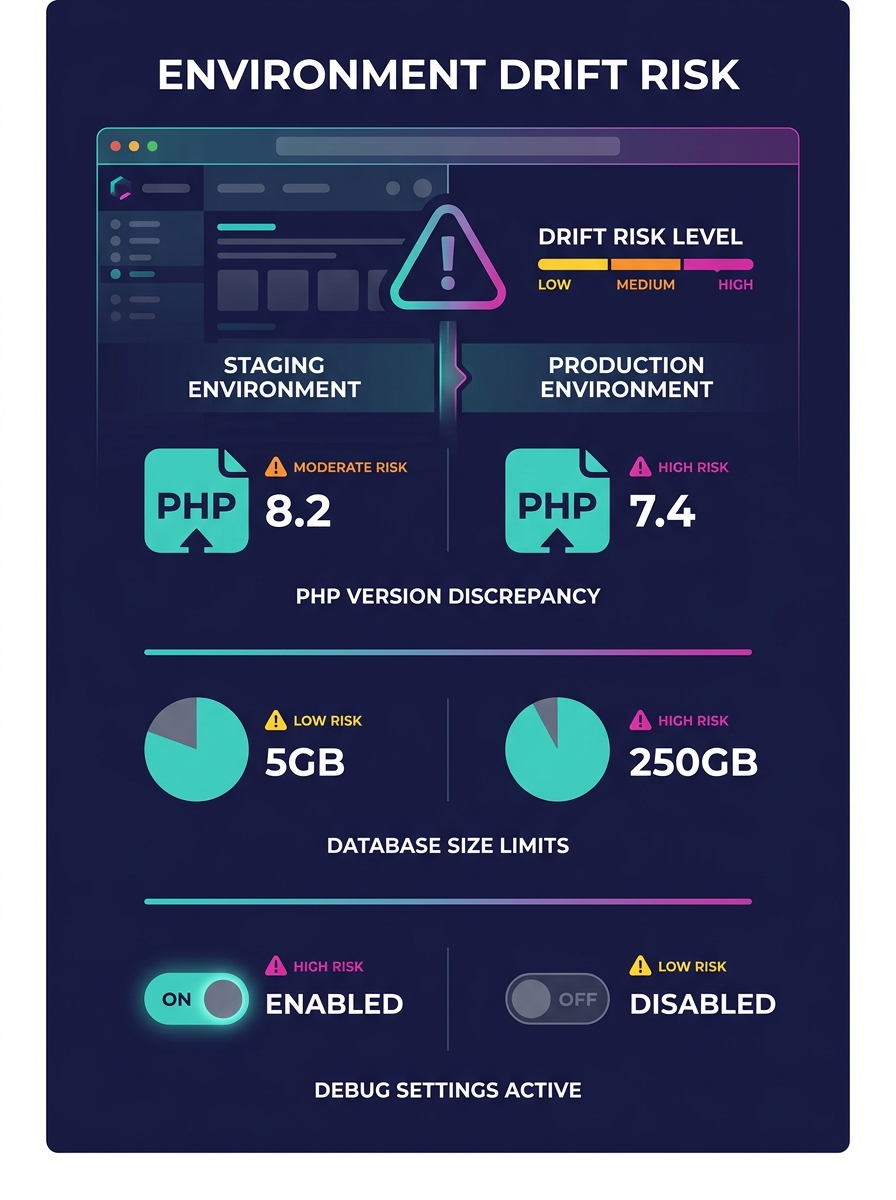
The InstaWP staging environment guide states that a proper staging site "replicates the production setup—same codebase, same configurations, and often the same data—so developers and teams can safely validate updates, debug issues, and ensure compatibility without affecting real users." That word "often" does a lot of heavy lifting. In practice, agencies rarely achieve full staging environment parity, and the gaps fall into predictable categories.
Consider the typical white-label WordPress setup. Your development team spins up a local environment using Local by Flywheel, DevKinsta, or a Docker-based solution. They build features, test them, push to a staging URL, get client approval, and deploy to production. At each handoff point, the environment changes in ways nobody documents:
- PHP version on local is 8.3; production is running 8.1 because the host hasn't been updated
- Staging has WP_DEBUG set to true; production has it off, suppressing warnings that would have flagged an incompatible function call
- The production site has an object caching layer (Redis or Memcached) that staging doesn't
- A CDN in front of the live site caches assets for 30 days, while staging serves everything fresh
- The production database contains 47,000 WooCommerce orders and 12 years of post revisions; your staging clone has 200 test orders
Each of these discrepancies can produce a bug that's invisible in staging and very visible to the client's customers.
Where WordPress Database Replication Breaks Down
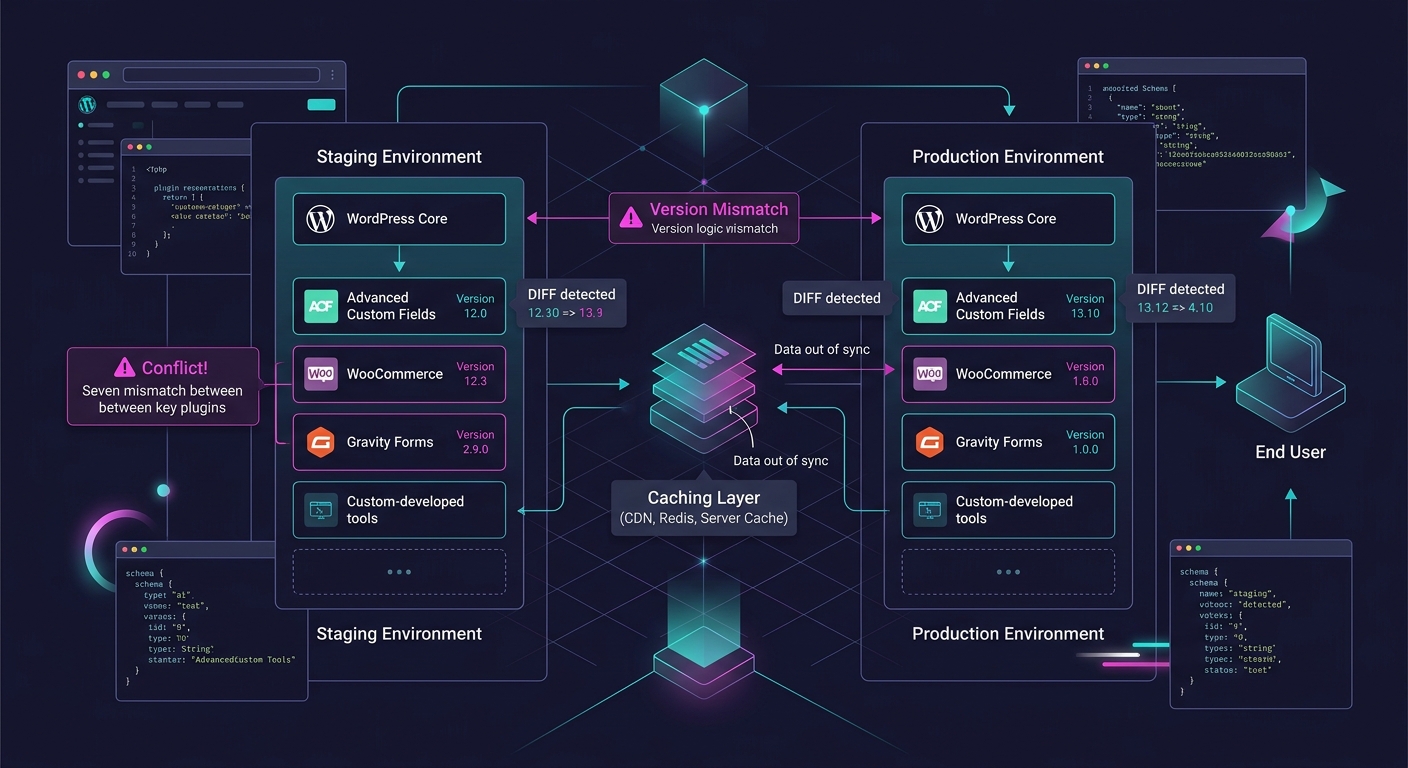
WordPress database replication is the single most common point of failure in the staging-to-production pipeline for agencies. The WordPress Stack Exchange discussion on database synchronization between dev and production environments surfaces a core tension: agencies don't write SQL migration scripts for content changes made through the WordPress admin UI. When a client's content editor adds a new custom field group through ACF, creates 30 product categories in WooCommerce, or modifies a Gravity Forms configuration, those changes live in the database—and they don't flow backward into staging automatically.
This means your staging site's wp_options table diverges from production within days of the initial clone. Plugin settings, theme customizer values, widget configurations, and menu assignments all live in that table. If your team builds a fix on staging against stale option data, the fix might address a problem that doesn't actually exist on the live site, or miss the real trigger entirely.
Wbcom Designs recommends a specific directional model: code moves upward (local to staging to production), and content moves downward (production to staging to local). This sounds clean. In practice, it requires your team to re-clone the production database on a regular schedule—weekly, at minimum—and have a process for selective synchronization so you don't overwrite staging-specific test data every time.
Tools like WP Migrate Pro, WP-CLI exports with table filters, and WP Synchro exist precisely for this purpose. But the tool alone doesn't solve the problem if your team isn't running the sync before they start debugging. We've written about how building repeatable debugging workflows for client issues reduces guesswork; database freshness is where that workflow starts.
Plugin Conflicts Hide Behind Caching Layers
Plugin conflict diagnosis on staging is reliable only when your staging environment runs the same plugins, in the same versions, with the same configurations, as production. That sounds obvious. The reality is less tidy.
Agencies using white-label workflows often manage plugin updates on different schedules across environments. Production might auto-update minor releases while staging is pinned to a snapshot from two weeks ago. A new version of a forms plugin might conflict with a security plugin that also updated, and that conflict only manifests with both updates present simultaneously.
The WordPress.org Learn platform recommends a systematic deactivation approach for diagnosing plugin conflicts: deactivate all plugins, reactivate them one by one, and test after each reactivation. This works. But on a live production site, deactivating plugins means downtime or broken functionality for real visitors. And on staging, the test is only valid if your plugin list and versions match production exactly.
Warning: If your staging site's plugin versions are even one minor release behind production, conflict testing results may be meaningless. Always verify version parity before beginning any plugin conflict diagnosis workflow.
Caching compounds this. W3 Total Cache, WP Rocket, LiteSpeed Cache, and similar plugins behave differently in staging versus production because staging rarely has the same CDN, server-side caching, and browser caching rules. A bug caused by a stale cached version of a JavaScript file will never appear in your local environment, which doesn't cache anything. Your staging environment might partially cache. Only production, behind Cloudflare or a similar service with aggressive cache rules, will exhibit the problem consistently.
The White-Label Amplification Effect
For agencies running white-label client troubleshooting across multiple client accounts, the staging drift problem multiplies. Each client site has its own hosting environment, its own plugin ecosystem, its own caching configuration, and its own database size. A white-label team that maintains 30 client sites can't realistically keep 30 staging environments in perfect sync with their respective production sites. The operational cost is enormous.
This is where structural communication matters. When your white-label development partner reports "can't reproduce" on a client bug, the first question shouldn't be "did you try harder?" It should be "what environment did you test in, and how does it differ from production?" If your team structures feedback loops instead of ticket queues, that question gets asked in the first response, not the third. If your teams are working in silos, it might never get asked at all.
"Can't reproduce" is an environment statement, not a verdict. Treat it as the beginning of the investigation, not the end.
A practical approach: require every "can't reproduce" response to include a brief environment diff. PHP version, active plugin list with versions, object caching status, CDN status, database clone date. This takes five minutes to assemble and saves days of back-and-forth. Some agencies formalize this in a shared Notion or Confluence template that gets filled out before any debugging begins.
Production-Only Debugging Techniques That Work
When you've confirmed that staging can't replicate the issue, you need to debug on production directly. This is uncomfortable but sometimes necessary. The key is minimizing risk.
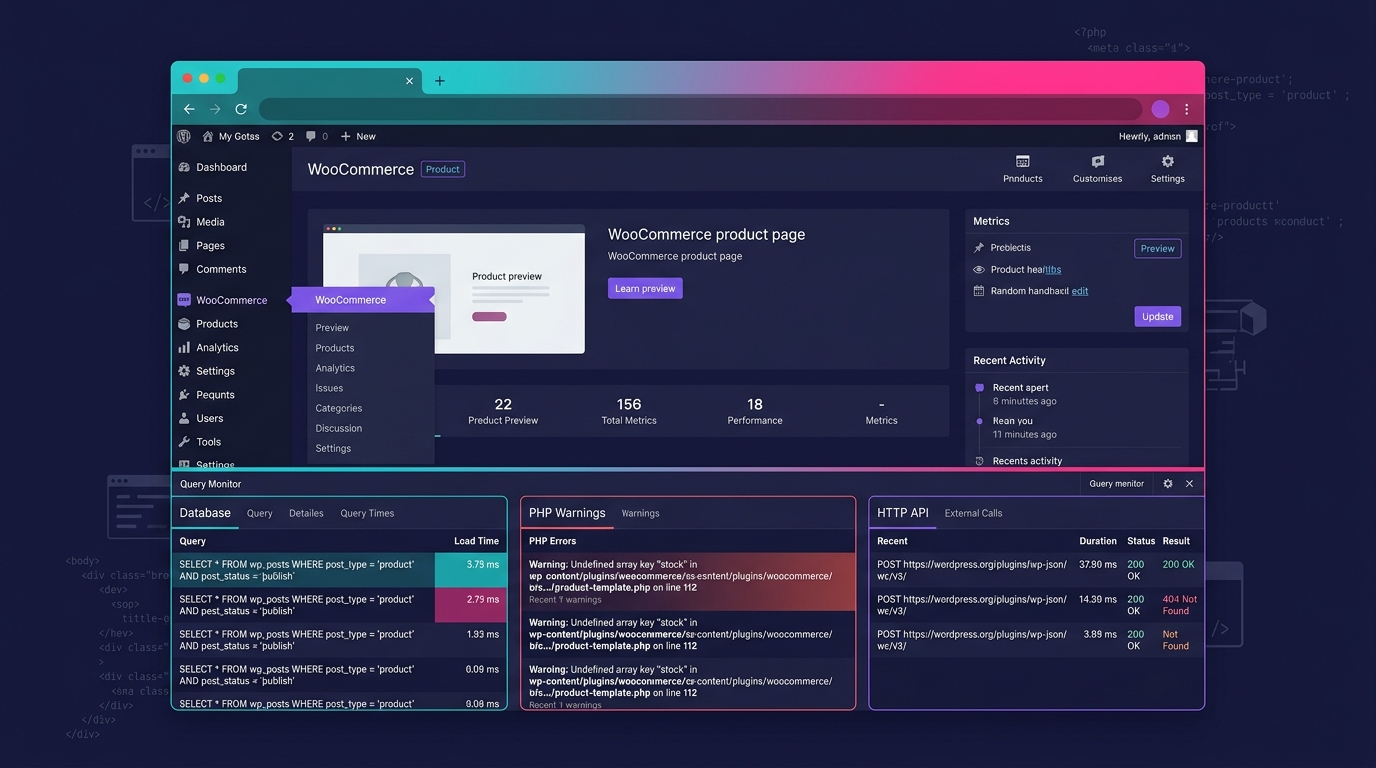
Query Monitor is the single most useful production debugging tool for WordPress. It shows database queries, PHP errors, HTTP API calls, hooks, and conditionals on every page load. Install it on production, restrict access to admin users, and you can see exactly what's happening on the page where the client reports a problem. Unlike staging-based debugging, you're looking at the real database, real caching behavior, and real server configuration.
Health Check & Troubleshooting plugin provides another angle: it lets you disable all plugins and switch themes for your admin session only, without affecting other users. This means you can run the deactivate-and-reactivate conflict test on production without any visitor-facing downtime.
Error logging matters here too. Production sites should have WP_DEBUG_LOG set to true (with WP_DEBUG_DISPLAY set to false) so PHP warnings and errors write to a file rather than displaying on screen. Many agencies skip this step, which means production errors vanish into the void. Check the debug.log file before you start theorizing about what's wrong. The answer is often already written there.
For agencies with automated compliance infrastructure, production monitoring can flag anomalies before a client even reports them—error rate spikes, slow query patterns, or failed cron jobs that staging would never reveal.
Building a Parity Checklist Your Team Will Actually Use
Abstract advice about "keeping environments in sync" doesn't survive contact with a busy agency sprint. Checklists do. Here's what a practical parity verification looks like before any debugging session:
- Confirm PHP version matches between staging and production (check via phpinfo() or the Site Health screen)
- Export the production plugin list with version numbers using WP-CLI and compare against staging
- Verify object caching status on both environments (Redis/Memcached active or not)
- Check the date of the last database pull from production to staging
- Confirm whether the production CDN is bypassed on staging or replicated
- Verify that wp_options values for key plugins (forms, caching, SEO, security) match between environments
- Check server-level configurations: memory limits, max execution time, upload size limits
If any item on this list shows a mismatch, you've found a potential reason your staging environment can't reproduce the bug. Fix the mismatch first, then test again.
What The Data Doesn't Tell Us
The available guidance on staging environment parity is largely prescriptive: do this, avoid that, use these tools. What's missing from the conversation is measurement. No widely cited study quantifies how often staging-production drift is the root cause of agency debugging failures versus other factors like intermittent server issues, third-party API outages, or race conditions under high traffic. Anecdotal evidence from Stack Exchange threads and agency forums suggests it's the majority of "can't reproduce" cases, but agencies are making operational decisions based on gut feeling rather than tracked data.
The tooling gap is real, too. WordPress doesn't have a built-in environment comparison feature. You can diff codebases with Git, but diffing database state, server configuration, and caching behavior across environments requires stitching together multiple tools and manual checks. Until that process gets easier to automate, staging will keep lying to teams who trust it without verifying.
What would actually move the needle: agencies tracking every "can't reproduce" resolution in their project management tool and tagging the root cause. After a quarter of that data, you'd know whether your staging parity process is working or whether you're spending hours debugging in the wrong environment every week. That's the dataset the industry needs and doesn't have yet.