

Three tools sit between your agency and a reproducible client bug: a staging clone, a Docker container, and a well-configured error log. Each one solves a different slice of the production debugging WordPress problem, and choosing the wrong approach for a given ticket can burn more hours than the bug itself.
The real question isn't whether to debug. It's where. Should you spin up a staging clone and try to replicate the issue in a near-identical environment? Should you build a Docker container that mirrors the production server's PHP version, MySQL config, and plugin stack down to the patch level? Or should you start with WordPress error log analysis to narrow the problem before you clone anything at all?
Each approach has clear strengths, blind spots, and cost profiles. Here's how they compare when your client is waiting and your developer is stuck.
Staging Clones: Fast but Shallow
Staging environments are the most common debugging tool in agency work, and for good reason. Tools like WP Staging let you clone an entire WordPress site—database, uploads, plugins, theme—into a parallel environment where you can break things freely. Most managed WordPress hosts (Kinsta, WP Engine, Flywheel) offer one-click staging creation as a built-in feature.
The speed advantage is real. A staging clone gives your developer a working copy of the client's site within minutes. They can deactivate plugins one by one, switch themes, toggle settings, and test changes without any risk to the live site. For straightforward staging vs production issues like a plugin conflict, a theme update that broke a template, or a WooCommerce checkout bug tied to a specific payment gateway, staging is usually the fastest path to a fix.
But staging has limits that agencies don't talk about enough.
Where staging falls short
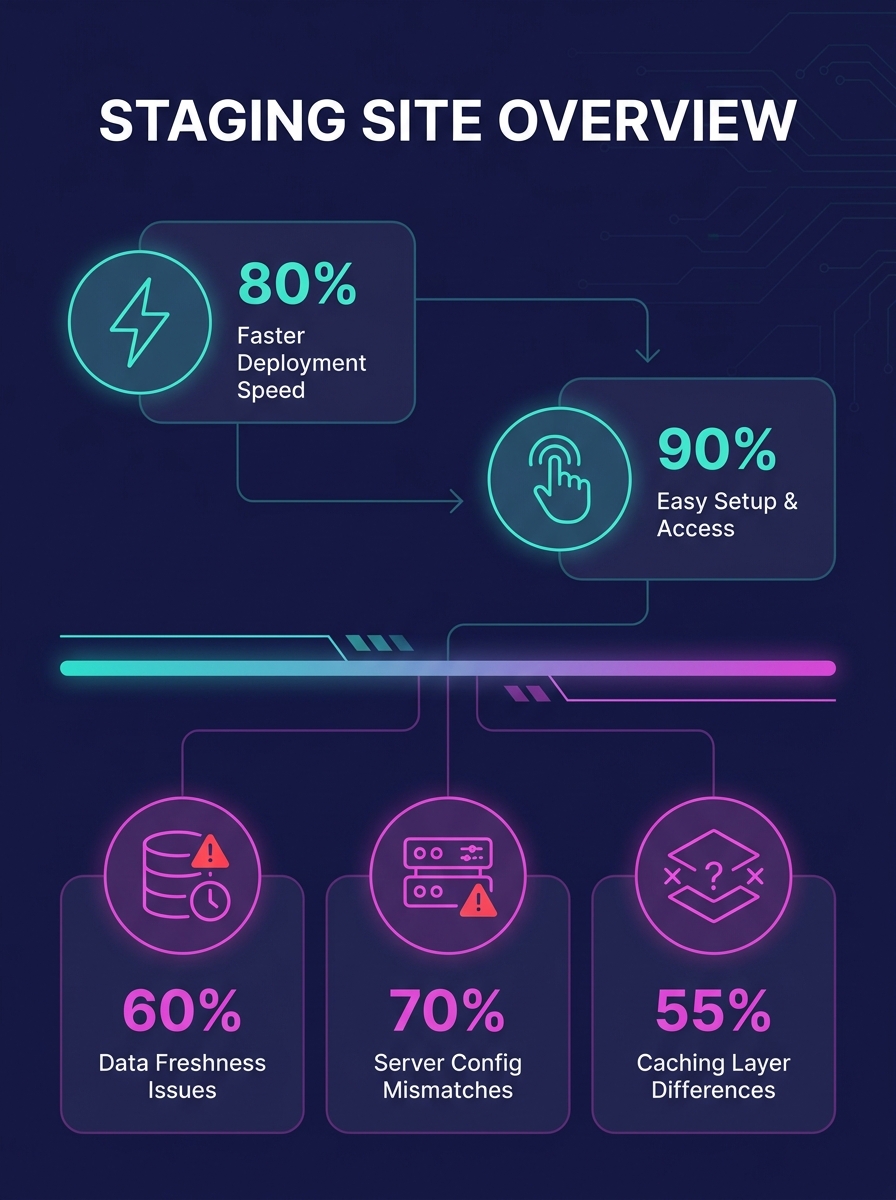
Staging environments often run on different server infrastructure than production, even on the same host. The PHP memory limit might differ. The MySQL version might be slightly newer. Caching layers (Redis, object caching, full-page caching) may not be configured identically. And if the bug is related to server load, cron scheduling, or third-party API rate limits, staging won't reproduce it because the conditions that triggered the error don't exist in a low-traffic clone.
There's another problem: data freshness. If you clone a staging site on Monday and the client reports a bug on Thursday that depends on new orders, new user registrations, or updated product data, your staging environment is already stale. You'll need to re-clone, which means re-testing your changes too.
Tip: When you create a staging clone for debugging, document the exact timestamp of the clone and the production error. If there's more than 24 hours of data drift, re-clone before you start testing.
Staging works best for plugin conflicts, theme regressions, and UI bugs. It works poorly for performance issues, intermittent errors, and anything tied to production-specific server configuration.
Why Docker Containers Win on Environment Parity
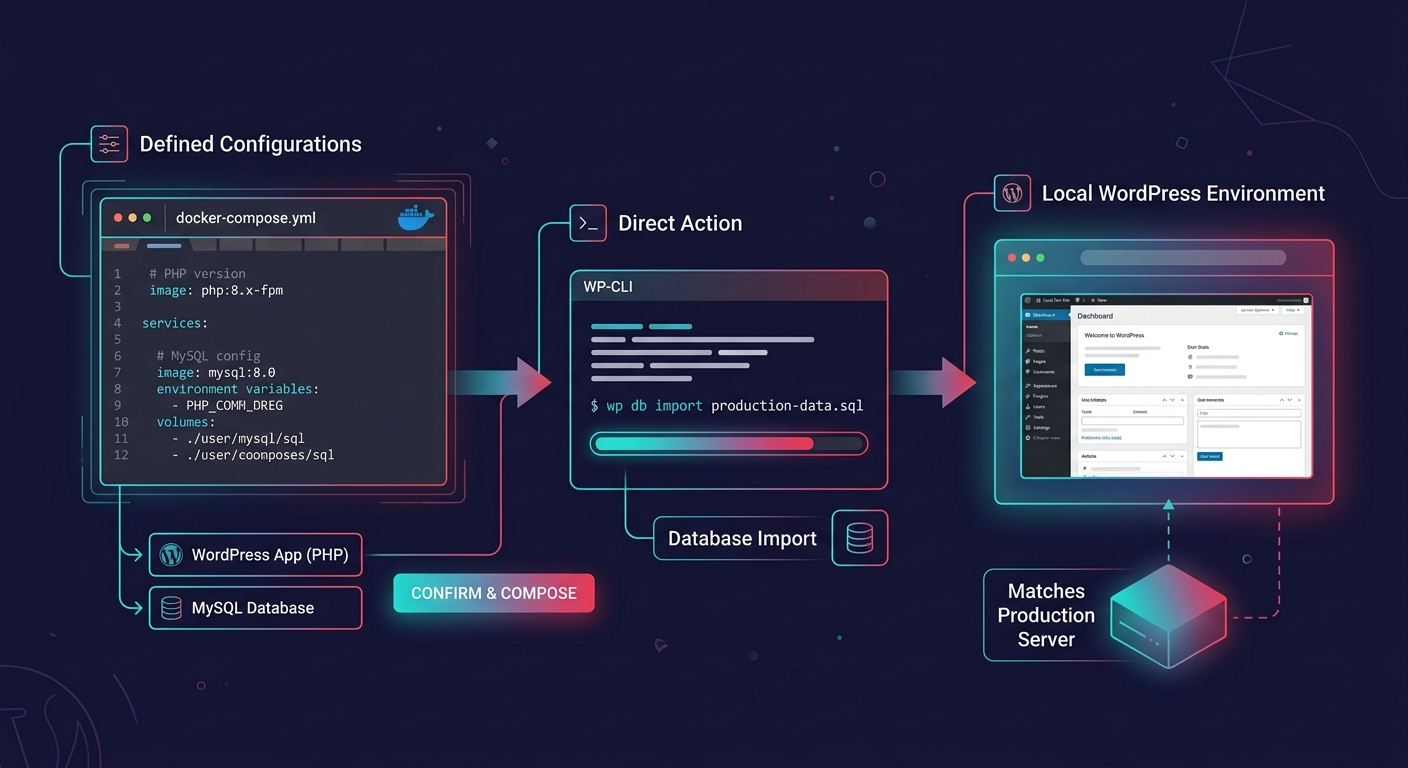
Docker for development environments takes a different approach. Instead of cloning the WordPress site onto your host's staging infrastructure, you build a container that replicates the exact server stack: the same PHP version, the same MySQL version, the same extensions, the same memory limits. You import the database separately using WP-CLI, map the wp-content directory, and spin up a local instance that's as close to production as you can get without being production.
This matters when you're dealing with bugs that staging can't reproduce. If a client is running PHP 8.1 with a specific set of extensions and your staging defaults to PHP 8.2, subtle type coercion changes or deprecated function behaviors might not surface. Docker lets you pin every variable.
The setup cost is the tradeoff. Building a Docker Compose file for a WordPress project takes 15 to 30 minutes the first time, and importing a full production database can take longer if the site has hundreds of thousands of posts or WooCommerce orders. As noted in a Stack Exchange thread on Docker WordPress setup, your WordPress container won't magically import the MySQL database for you. You need WP-CLI or a manual import step, and you need to search-and-replace the site URL in the database after import.
When Docker pays for itself
Docker becomes the clear winner when your agency manages multiple clients on different hosting stacks. If Client A is on Kinsta with PHP 8.1 and Client B is on a budget cPanel host with PHP 8.0 and limited memory, Docker lets you replicate both environments on a single developer machine. You can power containers up and down at will, and each one is fully isolated.
For agencies that handle white-label WordPress development across multiple teams or timezones, Docker also provides environment consistency. A bug that one developer reproduces in their container will reproduce in any other developer's container built from the same Compose file. That eliminates the "works on my machine" problem that plagues agency handoffs.
The downside: Docker requires command-line comfort. If your team is used to Local by Flywheel or DevKinsta's GUI, there's a learning curve. And for simple plugin conflicts, Docker is overkill. You wouldn't rent a forklift to move a chair.
Error Log Analysis Before You Clone Anything
Here's what surprises newer agencies: many production bugs don't require environment replication at all. A careful read of the WordPress error log can tell you exactly which plugin, which function, and which line of code threw the error. You can often diagnose the root cause in five minutes of log reading, then push a targeted fix without ever spinning up a staging site or a Docker container.
WordPress has a built-in debugging system controlled through wp-config.php. When WP_DEBUG is set to true and WP_DEBUG_LOG is enabled, WordPress writes PHP errors, warnings, and notices to a debug.log file inside wp-content. Setting WP_DEBUG_DISPLAY to false keeps those errors hidden from site visitors, which is critical for production debugging WordPress sites where you can't afford to leak stack traces to the public.
The quality of your WordPress error log analysis depends on how you've configured logging. The default debug.log file captures PHP-level errors, but it misses slow database queries, memory spikes, and AJAX failures. That's where tools like WP Debug Toolkit add value. According to Oxygen Builder's plugin roundup, WP Debug Toolkit logs queries to JSON files on disk rather than the WordPress database, which means you can identify slow plugins, repeated queries, and N+1 query patterns on production sites without introducing additional load.
A careful read of the WordPress error log can tell you exactly which plugin, which function, and which line of code threw the error—often in five minutes, without ever spinning up a staging site.
The log-first workflow
The best debugging workflow starts with logs. Before you clone anything, check three things:
- The debug.log for PHP fatals and warnings, filtered to the timestamp window when the client reported the issue
- The server error log (Apache or Nginx) for 500-series errors that WordPress didn't catch
- The Site Health screen under Tools for PHP version mismatches, memory limit warnings, and critical alerts
If the log points to a specific plugin file and line number, you may be able to push a fix directly, or at least narrow your search before committing to a full staging clone. Agencies that avoid common white-label service mistakes tend to build this log-checking step into their standard operating procedures, because it saves 30 to 60 minutes per ticket on average.
The limitation is that logs only capture what WordPress and PHP choose to record. Frontend JavaScript errors, visual rendering bugs, and race conditions between cached and uncached page loads won't appear in debug.log. For those, you need an actual environment to test in.
Warning: Never leave WP_DEBUG set to true on a production site longer than necessary. Debug output can expose file paths, plugin names, and database structure to anyone who finds the log file. Block public access to debug.log through your server configuration or .htaccess rules.
How To Choose Between These Three
The answer depends on two factors: what kind of bug you're dealing with, and how much time you have before the client escalates.
Plugin or theme conflicts — start with error log analysis. If the log identifies the offending file, test a plugin deactivation or theme switch on staging. Total time: 15 to 45 minutes.
Checkout, form, or payment gateway bugs — clone to staging immediately. These bugs usually depend on specific site data (products, tax settings, shipping zones) and are hard to diagnose from logs alone. If your agency also handles WooCommerce development at scale, you probably already have a staging workflow for these.
Performance degradation, intermittent 500 errors, or memory exhaustion — go to Docker. These bugs are environment-sensitive and often depend on PHP version, memory limits, or database size. Staging may not reproduce them because managed hosts often allocate more resources to staging than the client's production plan provides. Docker lets you constrain resources to match.
"It works on my machine" handoff failures — Docker, every time. If your developers are passing tickets back and forth because the bug appears in one environment and not another, the problem is environment parity. A shared Docker Compose file eliminates this. For agencies that hire dedicated WordPress developers or work with distributed teams, Docker Compose files should be version-controlled in Git alongside the project code.
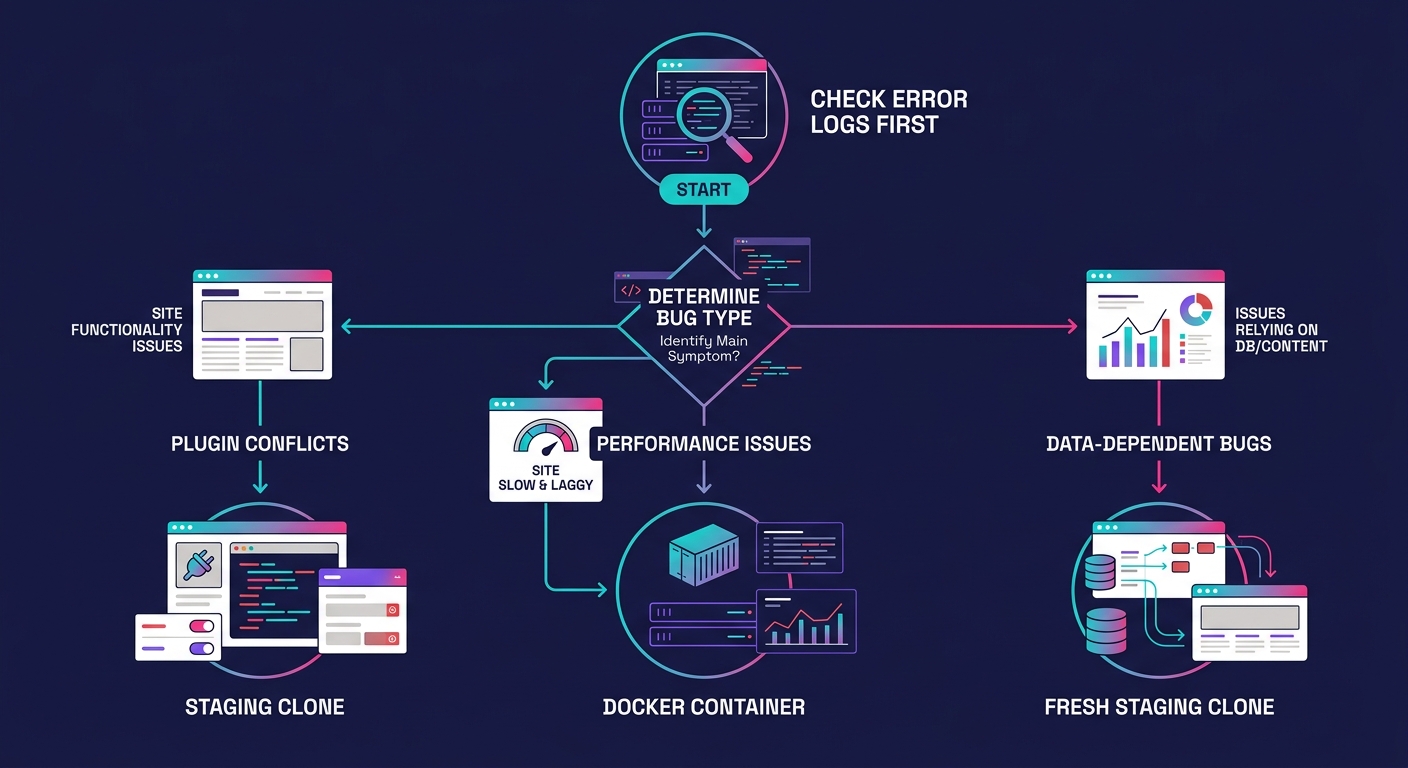
Most experienced agencies don't pick one approach exclusively. They build a layered workflow: logs first, then staging for data-dependent bugs, then Docker when environment parity matters. The agencies that burn the most hours on debugging are the ones that skip the log analysis step and jump straight to cloning, or the ones that never invest in Docker because staging "usually works." Both habits cost more than they save over the course of a quarter. The best debugging setup is the one that matches the complexity of the bug, and knowing which tool to reach for is the skill that separates a reactive support queue from a disciplined one.